
How to Extract High-Res Images from PDF Free
Extract original embedded photos, diagrams, and figures from PDF files at full native resolution without screenshotting or loss of quality.
Taking desktop screenshots of diagrams or photos inside a PDF results in blurry images restricted by your computer monitor's display scaling.
ILoveImages' PDF to Image tool parses the internal PDF object stream to extract the original raw image bytes directly at their full capture resolution.
By utilizing modern browser WebAssembly and HTML5 Canvas pipelines, ILoveImages processes every image locally inside your device memory. This eliminates upload bottlenecks, protects your confidential files from third-party server exposure, and provides lightning-fast execution even on high-resolution camera files.
PDF Page to Image Extraction
Side-by-side visual comparison • Instant on-device result
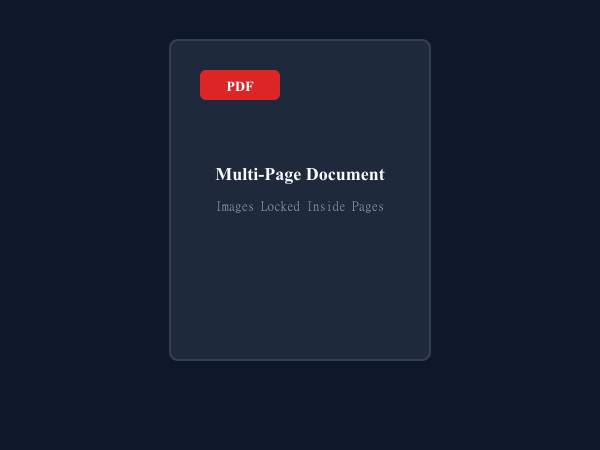
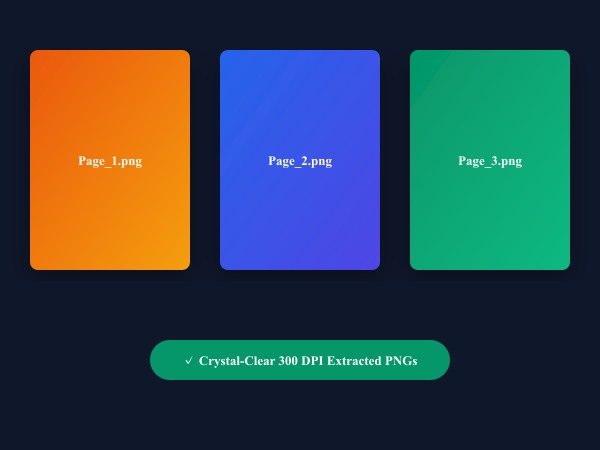
Figure 1: Extracting individual PDF pages into standalone crystal-clear 300 DPI PNG images with zero compression artifacts.
Extract Images from PDF FreeKey Capabilities of ILoveImages PDF to Image
Unlike traditional desktop software or cloud-based utilities, ILoveImages PDF to Image operates entirely in your browser using modern WebAssembly and HTML5 Canvas technology. Here is what makes this tool uniquely powerful:
- High-DPI PDF Rendering: Renders PDF documents at up to 300 DPI for crystal-clear text and illustrations.
- Selective Page Extraction: Choose specific page numbers or extract all pages in a single operation.
- Fast Browser WebAssembly: Uses PDF.js to parse and extract pictures locally without server upload wait times.
- One-Click ZIP Export: Downloads all extracted images neatly organized in a ZIP archive.
How to Extract Images from PDF in 5 Easy Steps
Follow these simple steps to complete your task in seconds directly in your web browser with zero software installation and 100% client-side privacy:
Extract Full-Resolution Photos from PDF
No quality loss, no watermark, and zero server uploads.
Frequently Asked Questions
Can I convert whole PDF pages into JPG images?
Yes, you can render complete PDF pages into crisp high-resolution JPG or PNG images.
Can I use these tools completely offline without an internet connection?
Yes! Once you visit ILoveImages or install it as a PWA, all core scripts and WebAssembly modules are cached locally in your browser's service worker, allowing you to edit photos anywhere, even in airplane mode.
Are my uploaded photos or edits stored on any server?
Never. ILoveImages is built with a zero-server-upload architecture. Every pixel calculation occurs strictly in your browser's local sandbox memory.